What is library enhancement?
Library enhancement is an optional Astiga Premium feature that tidies up your music library. It corrects incorrect titles, consolidates inconsistent items and fills in missing information. It does all this without touching your music files.
Turn library enhancement on and Astiga can correct album names, fill in missing album art, release dates and genres and add artist biographies and photos. Turn it off and you are back to your library exactly as your files describe it.
Your files are never changed
Why is library enhancement needed?
It isn’t needed for all listeners and collectors. If your files are meticulously tagged, or tagged to a very specific set of requirements, you may prefer not to use it. But for many people, library enhancement is a big time-saver.
Astiga builds your library from the tags inside your audio files during library synchronisation. If the tags are incomplete or inconsistent, as is common, so is your library.
The reason this is so common is that files come from many sources over many years: ripped CDs, downloads, old tagging software. Typical problems include:
- crowd-sourced data from (example) CD lookup services providing incorrect information
- albums with no cover art because the original data lookup failed
- albums split in two because the discs are tagged slightly differently
- missing years or genres, so browsing by decade or genre leaves albums out
- compilation albums split into multiple albums because the tracks are tagged with different artists
- lack of artist information because tagging treats releases as the first-class entity
Fixing all of this by hand can take a very long time. Library enhancement does much of it for you.
How to enable and disable library enhancement
- Go to Settings in the Web player.
- Find the Library enhancement section.
- Choose one of the three options:
- No enhancement: nothing is added or changed. You see your library exactly as your files describe it. This is the default.
- Show supplementary information: adds artist biographies and images only. Your albums and tracks are shown as they are in your files.
- Enhance library: the full experience. Supplementary information plus corrected album names and disc numbers, and missing album art, release dates and genres filled in.
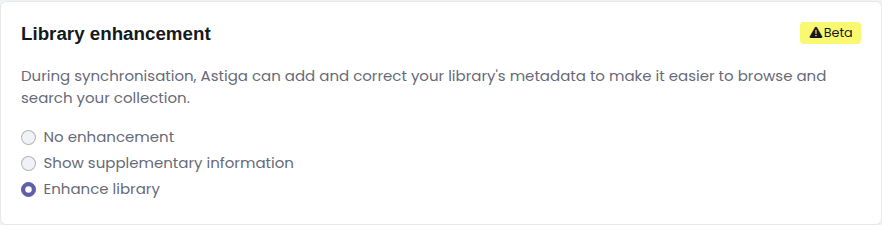
Your choice is saved straight away. You can switch between the options as often as you like.
Library enhancement is available to Astiga Premium subscribers. The setting is marked Beta while we continue to improve it.
What changes when it is enabled
Some examples of what you may see with library enhancement enabled:
- Missing cover art is filled in. An album that showed a blank cover now shows its artwork.
- Album names are corrected. Inconsistent album titles, such as tracks carrying “Disc 1” or “Disc 2” in the album name, are made consistent so the album comes together as one.
- Disc numbers are filled in so multi-disc albums are ordered properly.
- Missing release dates and genres are added, so more of your albums show up when browsing by year, decade or genre.
- Artist pages gain a biography and a photo.
Generally, if your files already have good information, it is left as it is. That’s because Astiga’s lookups for such music matches your own information, and nothing is changed.
Seeing what was changed
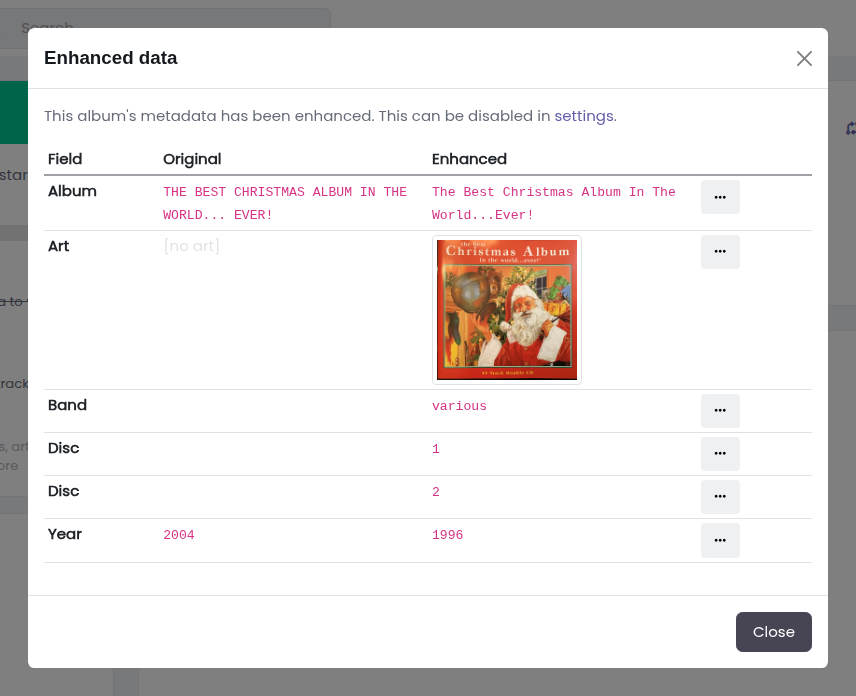
When an album has been enhanced, its page in the Web player shows an Enhanced metadata link next to the album title. Click it to see a side-by-side table of the Original value from your files and the Enhanced value Astiga is showing.
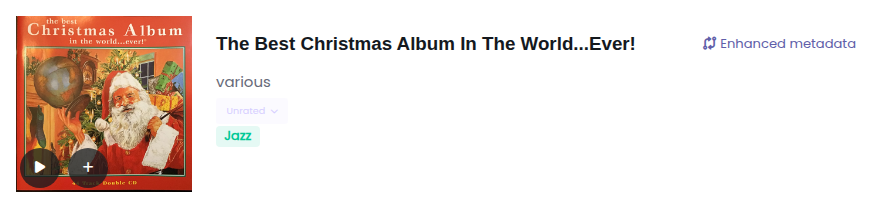
In this example, the files had the album name in capitals, no cover art, no band or disc numbers, and a year of 2004. Library enhancement corrected the name, added the cover art, band and disc numbers, and changed the year to 1996, when the album was first released:
What is “supplementary data”?
Supplementary data is additional information about the things in your library, rather than a structural or classification change to them. Today that means artist biographies and artist images.
Supplementary data does not alter your albums, tracks or tags. It simply adds to what you see, for example a photo and a biography at the top of an artist page.
Because of this, you can choose to see supplementary data on its own, without any other changes to your library.
How it works
For the technically curious, a brief overview of how library enhancement works.
Your library is kept twice
When Astiga synchronises your storage, it reads the tags from your files and stores them as your library. That copy is never modified by enhancement. This is what is shown when you choose No enhancement.
Astiga then makes a second, enhanced copy following the process below. This is what is shown when you choose Enhance library.
The Library enhancement setting therefore decides which of the two copies you see. That is why switching it off instantly shows your original data: it was maintained as a separate copy.
Enhancement happens during synchronisation
After Astiga has read your files during a sync, it looks up your albums, folder by folder, in online music databases. It sends information such as the album name, artist, track titles, track numbers and durations, and uses what comes back to correct album names and fill in missing details.
Artist biographies and images are looked up in the same way, by artist name.
Results are remembered. Albums are only looked up again when something has changed in your files, or after some time has passed, so later syncs are quicker.
If you have only just turned on Enhance library, you may keep seeing your original library until Astiga has finished enhancing it during a sync.
Where you will see it
Enhanced data is shown in the Astiga Web player, in search, and in apps that connect to Astiga, such as the Android app, Sonos and other Subsonic-compatible apps.
Nothing is written back
Astiga only ever reads your music files. Enhancement never renames, retags or moves anything in your storage. If you want the improvements in your files themselves, you still need to make them in your own tagging software.